Wednesday, February 23, 2022

CSV to XML - Demo

 The converter element enables you to transform an input message in one format to another. 


Input:

123, Akshay, CPI Consultant

456, Akshada, Professor


CSV to XML Converter :

XML Schema:
Choose Browse and select the file path to the XML schema file that is used as the basis for message transformation. The XML file schema format is used as the basis for creation of the payload. 

Path to Target Element in XSD :
XPath in the XML Schema File where the content from CSV has to be placed. 

Record Marker in CSV :
The corresponding record in the CSV file that has to be considered for conversion. This entry is the first text in every new record of the CSV. 
If this value is not specified then all the records would be considered for conversion.

Field Separator :

If we want to use a field separator that is not available in the dropdown list, manually enter the character in Field Separator in CSV field.

If you want to exclude headers in the first line of CSV file for conversion, select Exclude First Line Header checkbox. 
If the checkbox is not selected, then the attributes of the CSV file are mapped according to the order of occurrence in the XSD.


Path to Target Element in XSD :

CompetencyList/Competency


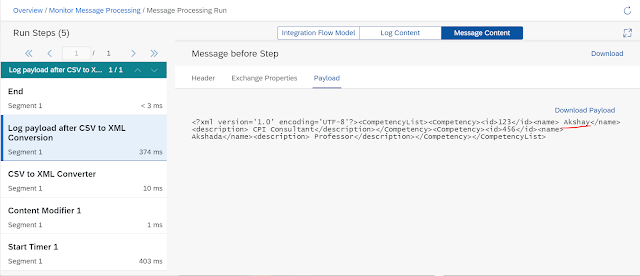
Output:

---------------------------------------------------------

<?xml version='1.0' encoding='UTF-8'?>

<CompetencyList>

<Competency>

<id>123</id>

<name> Akshay</name>

<description> CPI Consultant</description>

</Competency>

<Competency>

<id>456</id>

<name> Akshada</name>

<description> Professor</description>

</Competency>

</CompetencyList>

---------------------------------------------------------


--------------------------------------------------------------------------------------------------------------------------
XSD used:

<?xml version="1.0" encoding="utf-8"?>
<!-- Created with Liquid Technologies Online Tools 1.0 (https://www.liquid-technologies.com) -->
<xs:schema attributeFormDefault="unqualified" elementFormDefault="qualified" xmlns:xs="http://www.w3.org/2001/XMLSchema">
  <xs:element name="CompetencyList">
    <xs:complexType>
      <xs:sequence>
        <xs:element name="Competency">
          <xs:complexType>
            <xs:sequence>
              <xs:element name="id" />
              <xs:element name="name" />
              <xs:element name="description" />
            </xs:sequence>
          </xs:complexType>
        </xs:element>
      </xs:sequence>
    </xs:complexType>
  </xs:element>
</xs:schema>

--------------------------------------------------------------------------------------------------------------------------

Important Points:

  • If the CSV file has more fields then the XML schema fields , the converter will ignore the additional fields form the CSV
--------------------------------------------------------------------------------------------------------------------------


Message Digest

 Used to calculate a digest of the payload or parts of it and store the result in a message header.

We can transform part of the message, enter an XPath expression to specify the part (optional attribute). Can also define a prefix namespace mapping.

Hash 


Address:  https://refapp-espm-ui-cf.cfapps.eu10.hana.ondemand.com/espm-cloud-web/espm.svc/


Target Header Name:

Enter the name of the target header element which is to contain the hash value (digest). This is a mandatory attribute


When tested first (without changing anything in the payload), the below MD5 hash was generated :

AVWgPTQU1b/X/YC/4ANlwA==


--------------------------------

On the second test run, we added a new customer review in the OData WebShop API ( so we get a different response compare to earlier to view the disparity in MD5 Values)


Can see below the customer review was added in the Response Payload:


 As the response (input to MD5) has been changed, the resulted MD5 hash value should also be changed.

New MD5 Hash value :
rFH0pP+laZpYaZ7D13mniQ==

See the below Header (Name as per given in the configuration)


Data Store Screen:


Filter

When to use Filter?

->  if want to filter information by extracting a specific node from the incoming message.


What are different value types?

-> 


Sample XML Payload: (to put inside Body of Content Modifier)

----------------------------------------

<Message>

<orders>

 <order>

 <clientId>I0001</clientId>

 <count>100</count>

 </order>

 <order>

 <clientId>I0002</clientId>

 <count>10</count>

 </order>

</orders>

</Message> 

-------------------------------------------------

iFlow:


Content Modifier:


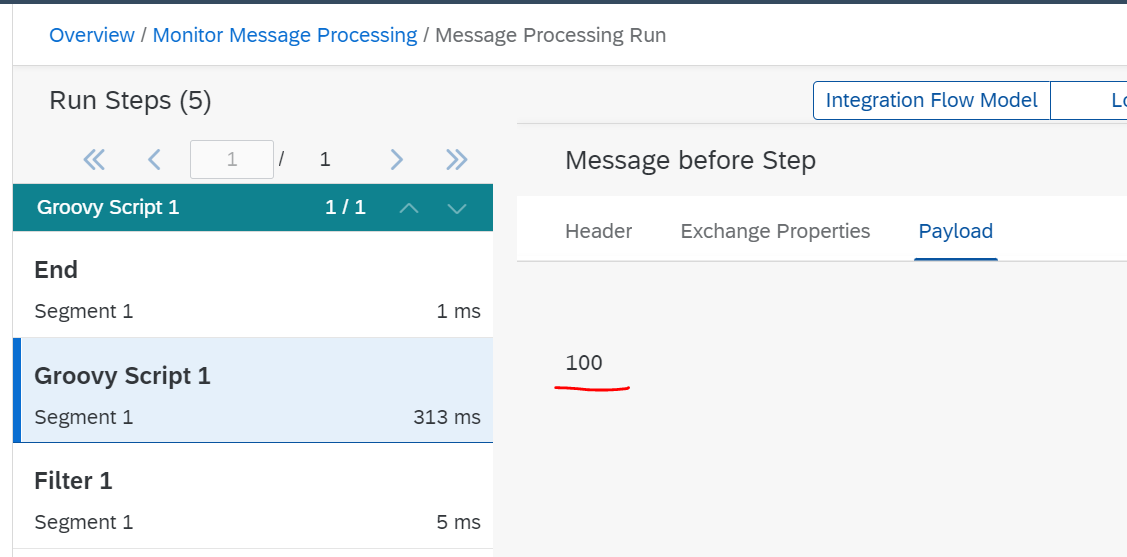
With value type as ' Integer '


With value type as Boolean :


With Value type as 'Node' : (only first occurrence of node is considered)


With Value type as 'Nodelist'  (All <count> nodes are considered )


Tuesday, February 22, 2022

Receiver Mail Adapter - Basics

 Address : 

Specifies the host name and (optionally) a port number of the SMTP server. 

Use one of the following open ports for external mail servers: 

  • 25 and 587 for SMTP+STARTTLS

  • 465 for SMTPS If you are using GMail Server, make sure that you allow insecure applications (GMail considers only communication based on OAuth2 as secure) when configuring the server. 

  • Can use port 25 for connections to GMail server.

--------------------------------
If you want to configure multiple mail receivers, use a comma (,) to separate the addresses.

The parameters From, To, Cc, Bcc, Subject, Mail Body as well as the attachment name, can be dynamically set at runtime from message headers or content. 


Sender Mail Adapter - Basics

Sender Email Adapter:

Download e-mails from mailboxes using IMAP or POP3 protocol.
Can access contents of mail body.
Access email attachments.

To access the mail attributes/Headers like (Subject, From, To) , we have to allow these headers in the Runtime Configuration... in order to whitelist them.

To access the attachments, Script has to be used.

No functionality to authenticate the sender of an e-mail.

--------------------------------------------------------------

Sender email adapter:


Parameters:

Address:
  • 143 for IMAP+STARTTLS 
  •  993 for IMAPS 
  •  110 for POP3+STARTTLS 
  •  995 for POP3S

Proxy Type:

Select None if you are connecting directly to the email server.
Select On-Premise if you are connecting to on-premise system.

Location ID (only if On-Premise is selected for Proxy Type) :
To connect to an SAP Cloud Connector instance associated with your account, enter the location ID that you defined for this instance in the destination configuration on the cloud side, 
or enter ${header.headername} to dynamically read the value from a header.

Protection 
Specifies the method to use to establish an encrypted (secure) connection. 

  •   Off No encryption is initiated by the client. 
  •  POP3S (only when transport protocol POP3 has been selected when creating the channel) The TCP connection to the server is encrypted. The S (in POP3S) stands for secure; in technical terms, TLS encryption is applied in that case. 
  •  IMAPS (only when transport protocol IMAP4 has been selected when creating the channel) The TCP connection to the server is encrypted. The S (in IMAPS) stands for secure; in technical terms, TLS encryption is applied in that case. 
  •  STARTTTLS Mandatory If the server supports STARTTLS, the client initiates encryption using TLS. If the server does not support this option, the connection stops with an error.
  •  STARTTTLS Optional If the server supports STARTTLS, the client initiates encryption using TLS. If the server does not support this option, client and server remain connected but communicate without encryption.

Authentication :

Specifies which mechanism is used to protect user name and password combination. 

  •  Plain User Name/Password The user name and password are sent in plain text. You should only use this option together with SSL or TLS, as otherwise an attacker could obtain the password. 
  •  Encrypted User/Password The user name and password are hashed before being sent to the server. This authentication mechanism (CRAM-MD5 and DIGEST-MD5) is secure even without encryption. 


Folder : Specify the IMAP folder containing the mails to be read
(only if as Transport Protocol the option IMAP4 has been selected)

Selection :  Specify which mails will be processed (all mails or only unread ones).
(only if as Transport Protocol the option IMAP4 has been selected)

Post-Processing :

Specify how to handle processed mails on the server.

Note: If Post-Processing is set to Mark as Read and the poll strategy is set to poll for all mails (Selection: All), then already processed mails will be processed again at every polling interval


Value Mapping

The value mapping referencing is required when a node value of a message needs to be converted to another representation. 

For example, Weight in Company A is referred as as 'Kg' whereas in Company B it is referred  as ''Kilogram". When Company A sends message to Company B, it needs to take care of the difference in the representations of the same item.

Populate Sender Agency, Schema and Value


Value Mapping can also be imported from a .CSV file.

Separator should be Pipe " | " Operator.


UDFs Groovy Script in Message Mapping

 The execution mode for functions are supported by two types

Single value -

Here, the Function Return type can only be String

Template:

-----------------------------------------------------------------------------------------------------------------

import com.sap.it.api.mapping.* 

def String extParam(String P1,String P2,MappingContext context) 

 String value1 = context.getHeader(P1); 

 String value2 = context.getProperty(P2); 

 return value1+value2; 

-----------------------------------------------------------------------------------------------------------------

All values of context -

  • No return statement to be used here.
  • Argument 'output' is to which we can add values
  • All the String inputs should be of Type Array.
Template:

-----------------------------------------------------------------------------------------------------------------

import com.sap.it.api.mapping.* 

def void extParam(String[] P1,String[] P2, Output output, MappingContext context) 

String value1 = context.getHeader(P1);

String value2 = context.getProperty(P2); 

 output.addValue(value1); 

 output.addValue(value2); 

-----------------------------------------------------------------------------------------------------------------